Applications and Actions Simulated
The OBUX workload uses a suite of lightweight applications, each prefixed with OBUX, to emulate standard productivity tools. These applications generate actions for the three benchmark categories: System tasks (Category S), Responsive UI interactions (Category A), and Functional tasks (Category B).
-
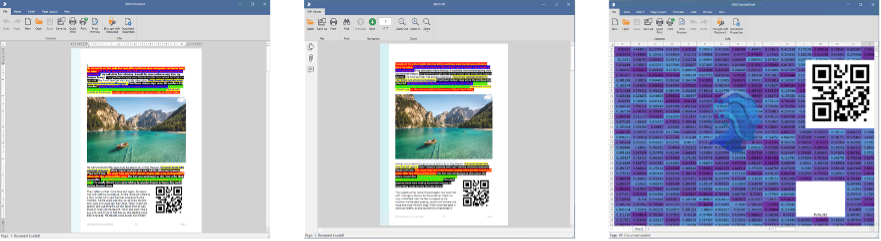
OBUX Document: A simulated word-processing application like Microsoft Word. The benchmark automates actions such as opening the File → Open dialog, selecting Save As, navigating through a multi-page document, and hovering over toolbar items. These actions test both UI responsiveness and document-rendering performance.
-
OBUX Spreadsheet: A simulated spreadsheet application like Excel. The workload drives actions such as opening file dialogs, creating a new sheet, and navigating through predefined content checkpoints. These actions assess both UI responsiveness and content-handling behaviour.
-
OBUX PDF: A lightweight PDF viewer. The script opens a PDF file and navigates through multiple pages, simulating scrolling or targeted navigation. It also triggers common dialog interactions such as Open and Save As. These tasks measure document-loading, rendering speed, and navigation performance.
-
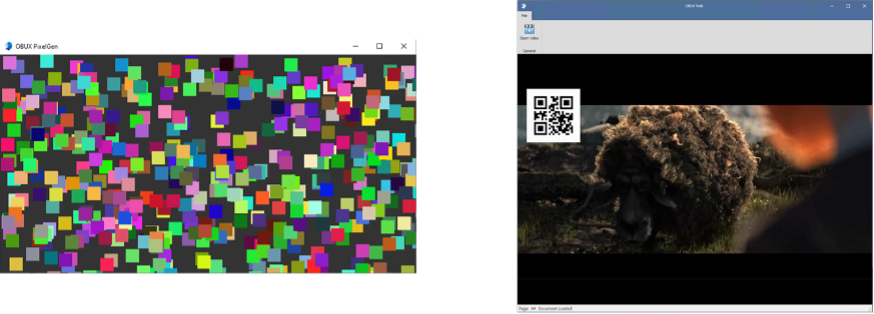
OBUX Web: A simulated web browser or web-based application interface. Current tasks include loading web content and optionally playing a short video stream. These actions exercise network, rendering, and media playback paths.
Note: Some web/video tasks are experimental and are executed but excluded from scoring.
- OBUX PixelGen: A graphics and rendering test utility. PixelGen performs GUI drawing or GPU-intensive operations and is primarily used to measure application launch time and foundational graphics performance. It also prepares the groundwork for future GPU-focused tasks in OBUX.
By combining these applications, OBUX evaluates a broad range of end-user scenarios, editing documents, analysing data, viewing content, browsing the web, and rendering graphics. Each application executes a defined set of automated transactions categorized as either Category A (short UI interactions) or Category B (longer content-loading operations). For example, hovering over a menu item in OBUX Document is a Category A task, while loading the document and waiting for Page 1 to appear is a Category B task.
Iterations and Timing
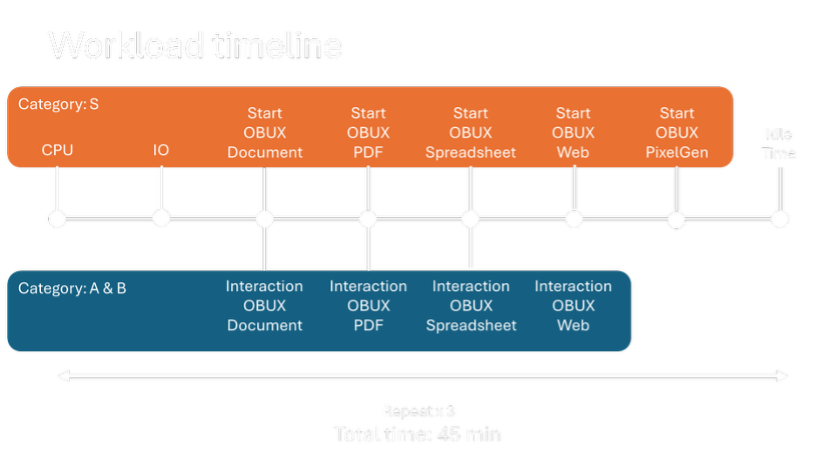
To ensure reliable and repeatable results, the full workload is executed in three consecutive iterations during a single benchmark run (Iterations 1, 2, and 3). Running multiple iterations helps smooth out transient fluctuations and allows OBUX to measure consistency; any significantly slower iteration will increase variability, which is captured in the scoring model. Each iteration follows the same sequence of actions:
-
Application workflows (Categories A and B): The benchmark launches the OBUX applications (Document, Spreadsheet, PDF, etc.) and executes the scripted interactions within each one. For example, an iteration of OBUX Document may include hovering over “Save As” (Category A), hovering over “Open” (Category A), opening the file dialog (Category B), loading a test document (Category B), and navigating through its pages. OBUX Spreadsheet and OBUX PDF perform similar structured sets of actions.
-
System tasks (Category S): At designated points, either between user interactions or in parallel where appropriate- OBUX executes system-level tasks. These include CPU-intensive calculations, multi-core load tests, and file I/O operations (e.g., reading, writing, or deleting files of various sizes). These tasks are carefully scheduled to reflect realistic multitasking conditions without artificially distorting user-level timing.
Across each iteration, dozens of sub-transactions are recorded. After completing all three iterations, OBUX has a comprehensive dataset covering responsiveness, functional performance, and system behaviour. The following sections describe how these timings are captured and used in the scoring process.